
Add more users to your account
Need to add more users to your account? Whether you're using a Hushmail address or your own custom website address, adding new users is easy. Just find the section below that fits your account type and follow the steps to set up your new users in no time.
Note: Adding more users to your account may upgrade your plan, which could increase your costs. Be sure to review your plan details to understand any potential changes to your billing.
If you’re using an account with one of our email domains (like hushmail.com, hush.com, or therapysecure.com)
-
Sign in to your account
Use your usual sign-in details to access your Hushmail account on our website.
-
Open Preferences
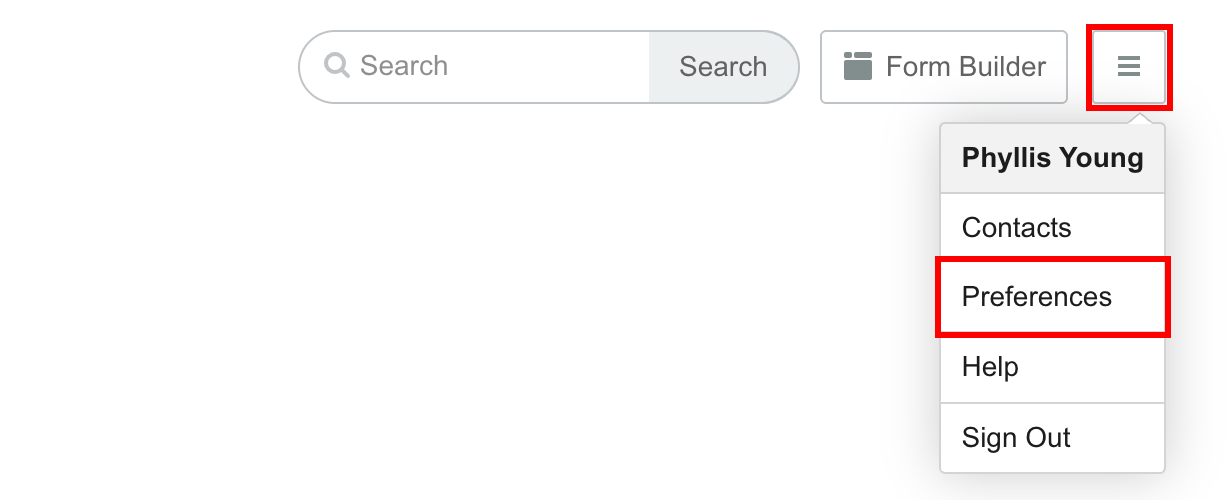
Once you're signed in, click the menu in the upper-right corner and choose Preferences.
-
Go to the Plan page
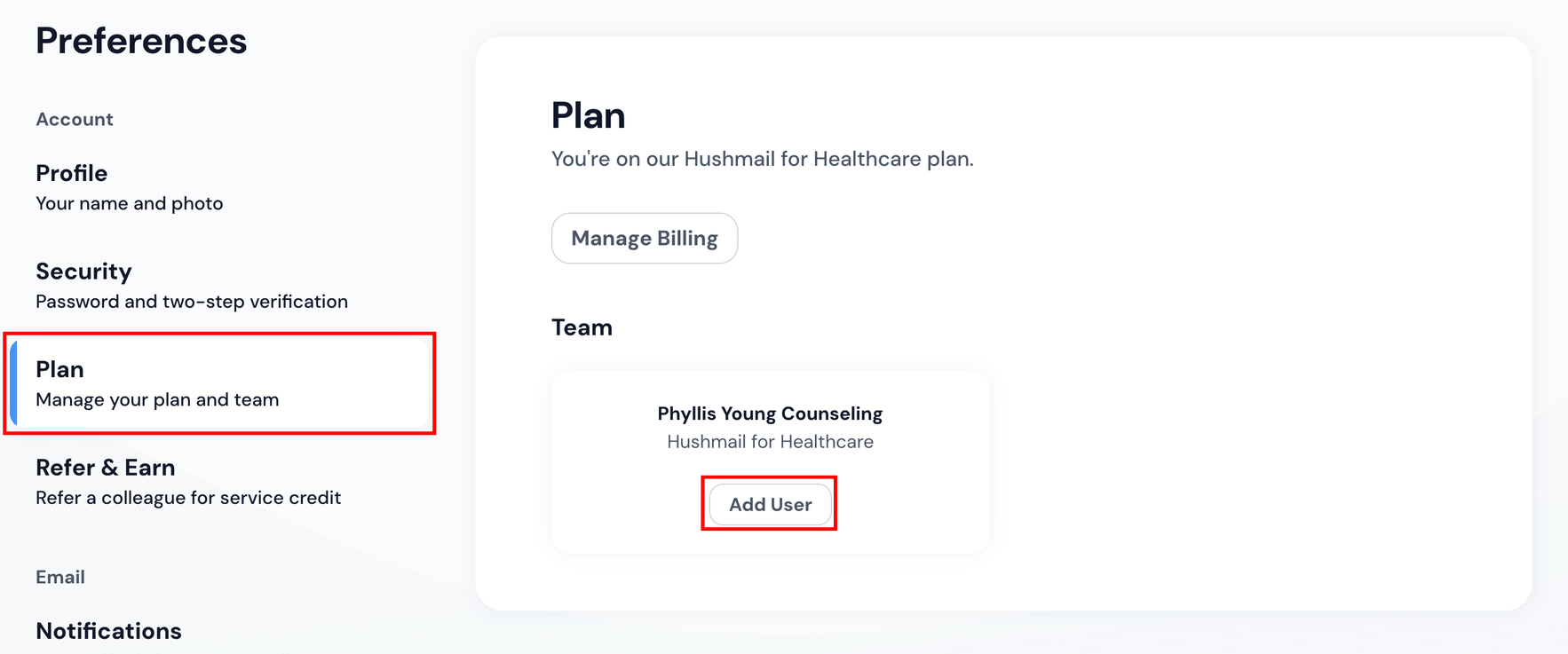
Select the Plan page. Under Team, click Add User.
-
Add the user
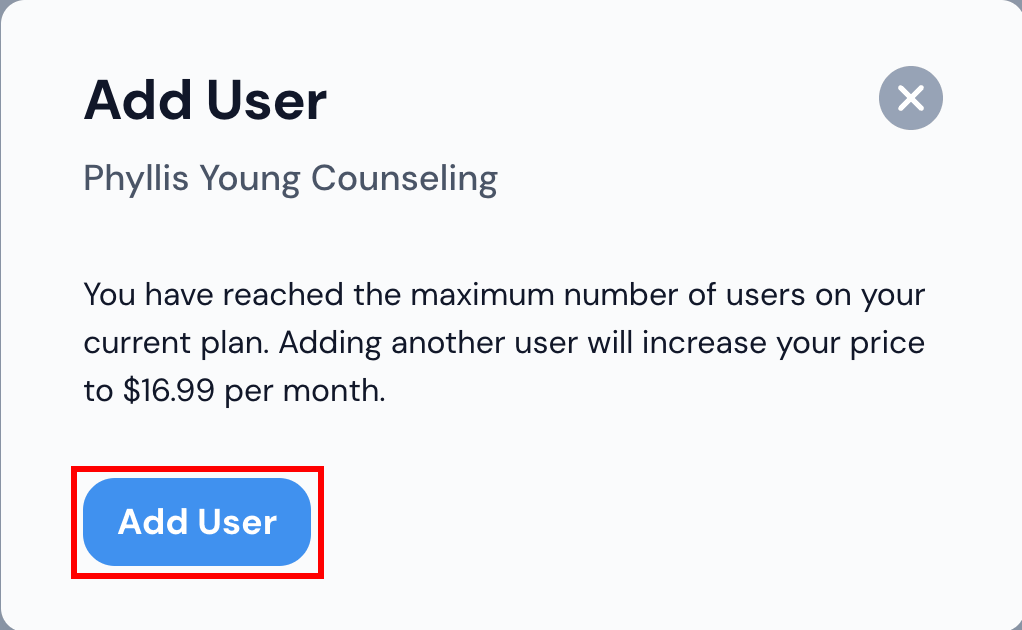
A window shows how your price will change. Click Add User.
-
Set up the new email account
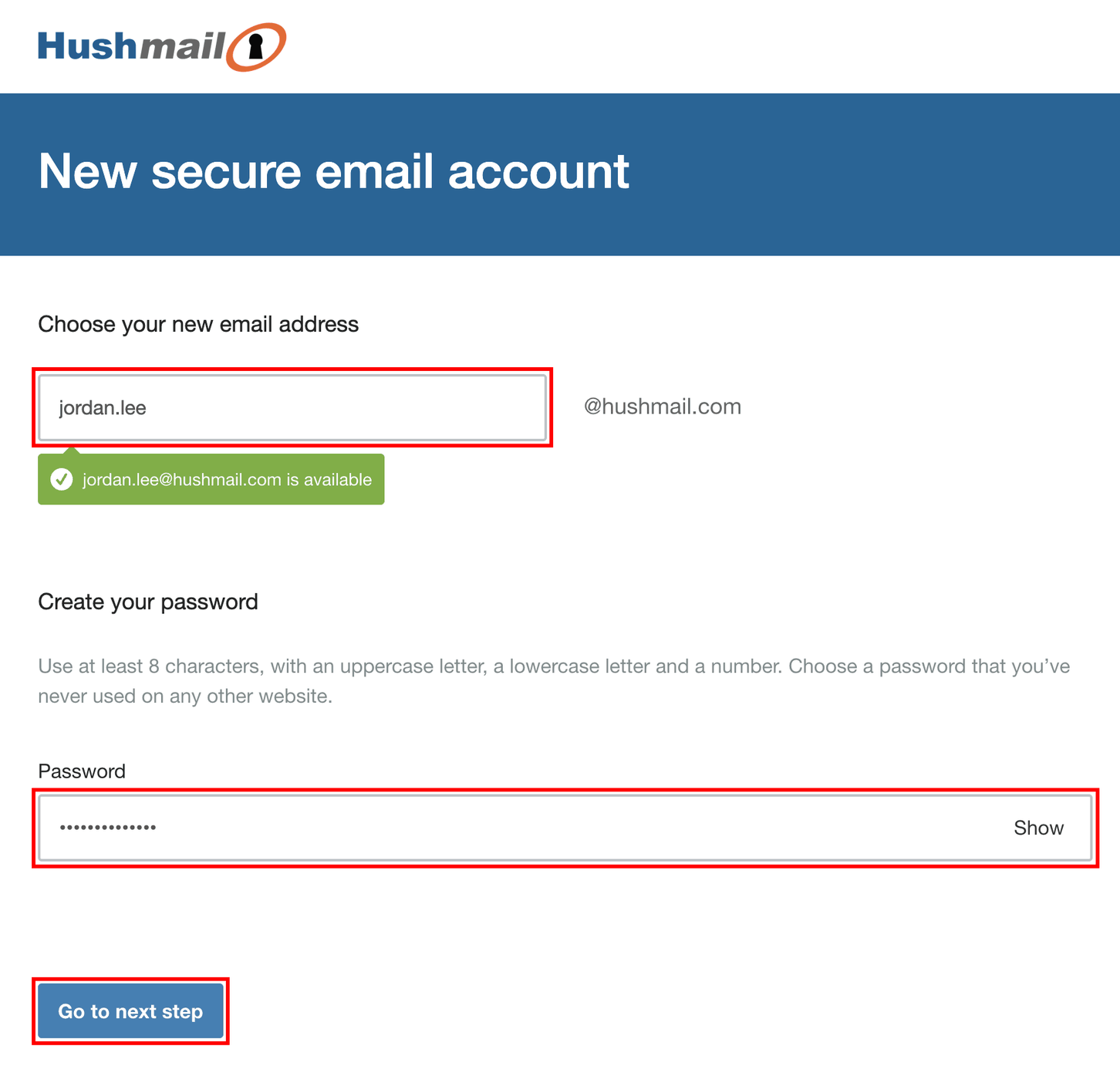
On the New secure email account page, choose the new email address and create a password for it. Click Go to next step and follow the steps on the screen.
Note: You can also use this link to go directly to the Plan page in Preferences.
If you're using your own website address or a custom domain (like yourpractice.com or yourpractice.hush.com)
-
Sign in with your administrator account
Make sure you're signed in with the admin account for your domain.
-
Open Preferences
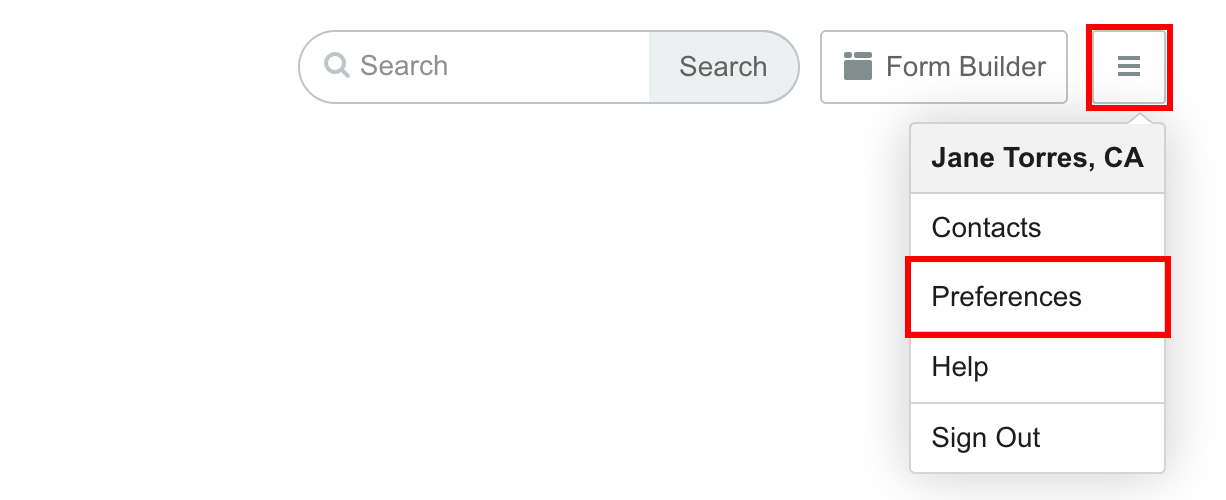
After signing in, click on the menu in the upper-right corner and select Preferences.
-
Go to the Plan page
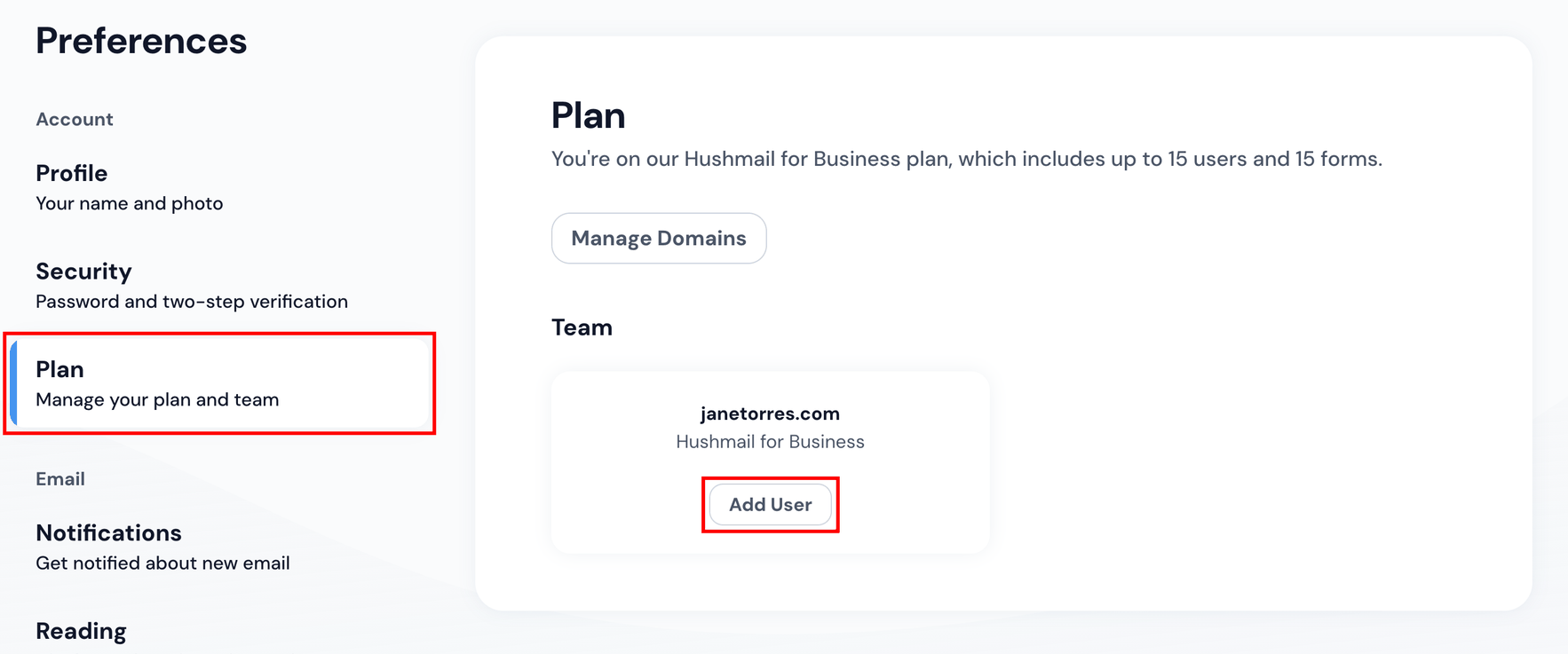
Select the Plan page. Under Team, find your domain and click Add User.
-
Add the user
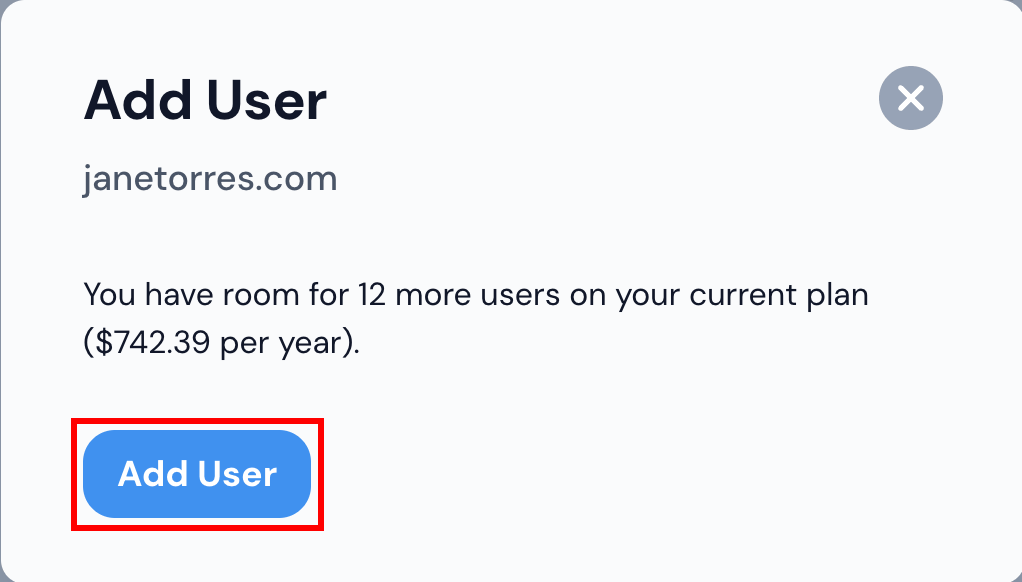
A window shows how many more users your plan has room for, or how your price will change. Click Add User.
-
Set up the new email account
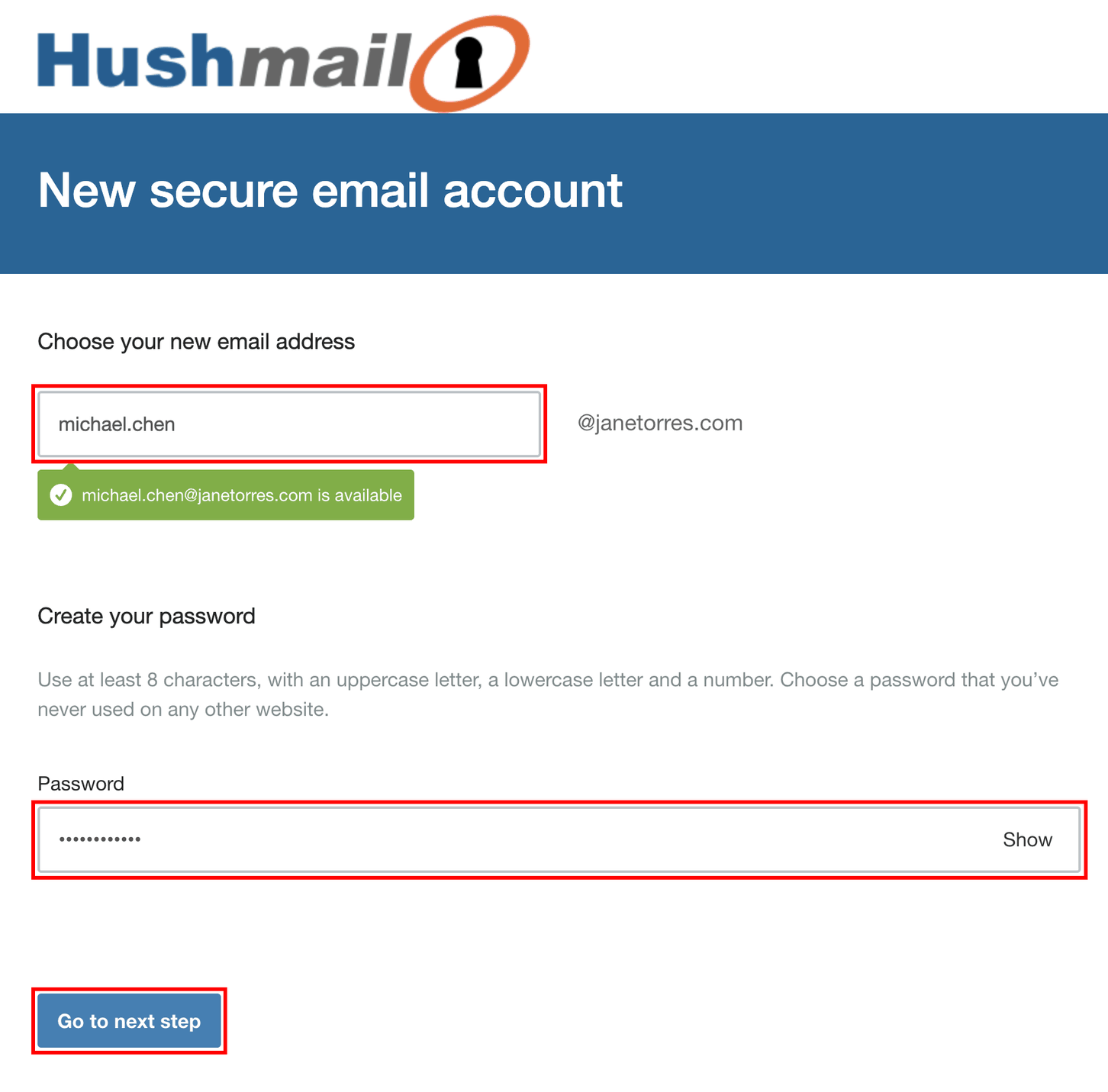
On the New secure email account page, choose the new email address and create a password for it. Click Go to next step and follow the steps on the screen.
Note: You can also use this link to go directly to the Plan page in Preferences.